
23 October 2026
During In our webinar on 8 October, we showed you how Microsoft Loop brings all project information from Teams, Outlook, Planner and SharePoint together in a clear and organised way, and how to use this tool effectively. Did you miss the webinar? Or would you like to watch it again? Then watch the recording.
In many projects, after a while, important information quickly becomes scattered across different locations. This is because such a project often starts in Teams, a decision or action point is shared via Outlook, the schedule is in Planner and documents are stored in SharePoint. And then the search begins. Who was supposed to take this on? What had we agreed? Was that deadline this Friday or next week? And where are the latest notes?
Get a grip on your projects with Microsoft Loop
During the webinar ‘Take control of your projects with Microsoft Loop’, we’ll show you how to use Microsoft Loop to bring together agreements, actions, decisions and other project information in a clear and organised way. Not as a replacement for Teams, Outlook, Planner or SharePoint, but rather as a place that connects these tools.
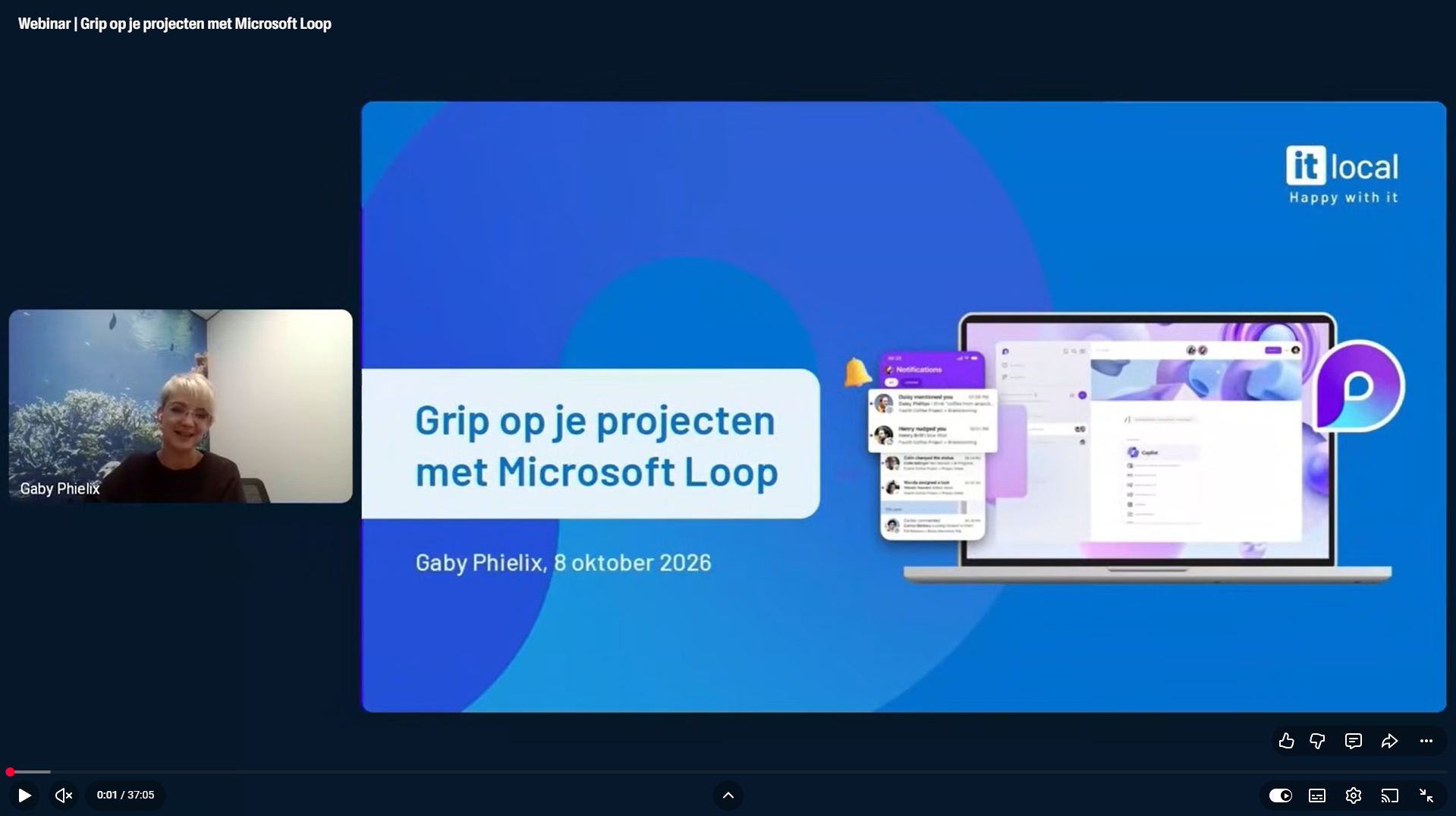 Lots of practical information in just under 40 minutes
In our webinar, we will cover the following topics, amongst others:
- why project information becomes so easily fragmented;
- what role Loop plays alongside Teams, Planner, OneNote and SharePoint;
- how to set up a well-organised project workspace; how to structure meetings, appointments, decisions and actions;
- how to link actions from Loop to the relevant people and deadlines;
- how Loop and Planner complement each other without duplicating work;
- what arrangements you put in place to prevent Loop itself from becoming a mess as well.
Using a real-world case study, Gaby Phielix demonstrates how to organise a project in Loop, including a project overview, planning, meetings, decisions and actions. We focus primarily on practical aspects: what do you record where, and how do you ensure colleagues can easily find information?
So, after this session, you’ll not only know what Microsoft Loop can do, but, more importantly , how to use it effectively to gain better control over your projects, without adding yet another standalone system.