
12 July, 2023
What is OneNote? Microsoft OneNote is a handy tool for organising, sharing and editing your notes. This article will tell you everything you need to know about OneNote, from the basics to the advanced features, to make your work just that little bit easier. Sit back and take notes!
How does OneNote work?
Before we start, it is good to become aware of which version of OneNote you are using. This may be two; OneNote and OneNote for Windows 10. OneNote for Windows 10 comes standard with the Windows 10 operating system, and is the lighter 'off-the-shelf' version of OneNote, which includes all the core functionalities. For the most advanced features such as templates and editing history, you need to install the OneNote desktop app. You can find it in the Microsoft Store and download it for free.
Now that we have that clear, let's get down to...
Notebooks, sections and pages
Notebooks are the basis of OneNote. You can think of a notebook as a large folder where you store all your notes. You can create multiple notebooks for different purposes or topics. Think for instance of your education, your work, or a team you are part of. You can customise the name, colour and icon of a notebook to make your notes as personal and clear as possible. You can save a notebook on your computer, in OneDrive or in a shared network location.
Within a notebook, you can create sections to further organise your notes. A section is a kind of tab that you can give a name and a colour. Sections are similar to the tabs you can put in a multi-folder. Do you use your notebook for school? Then each subject gets its own section. Is it your notebook for work? Then individual projects get their own section.
In each section, you can create pages to write your notes. A page is a blank sheet on which you can not only type and draw, but also place images and audio and video files. You can create as many pages as you want, and give them a title that appears at the top of the page.

Not just your notebook
One of the advantages of OneNote is that you can share your notebooks with others. This allows you to collaborate on projects, exchange ideas or give feedback. To share a notebook, click the 'Share' button in the top-right corner of the screen. You can then choose whether to share the notebook via a link, an e-mail or another app. You can also set who can edit the notepad and who can only view it.
If you collaborate in a shared notebook, you can see who made which changes. You can also add comments to pages or paragraphs to ask critical questions or make useful suggestions. To add a comment, right-click where you want to place it and choose 'New comment'. You can also respond to existing comments made by others.
Useful features, tips & tricks
Quicknotes
These are quick notes you can make without having to open OneNote. You can use them to write down something you don't want to forget, such as a phone number or a shopping list. To create a quicknote, click the OneNote icon in the taskbar or press Windows-N. The note will then appear in the 'Loose Notes' folder among your notebooks. From here, you can drag them to another notebook, delete them or leave them as they are.
Tip from IT Local:
Start small! The advanced features we explain here can be overwhelming, but they are far from necessary. To get to know OneNote, it is best to start with a simple notepad. The rest of the features will then follow naturally as you become playfully familiar with the app.Search function
This is a powerful feature that lets you quickly find something in all your notes. You can search by keywords, titles, authors, dates or labels. It even indexes text from images! To use the search function, press Ctrl+F or click on the magnifying glass in the top left corner of your screen.
Labels/Tags
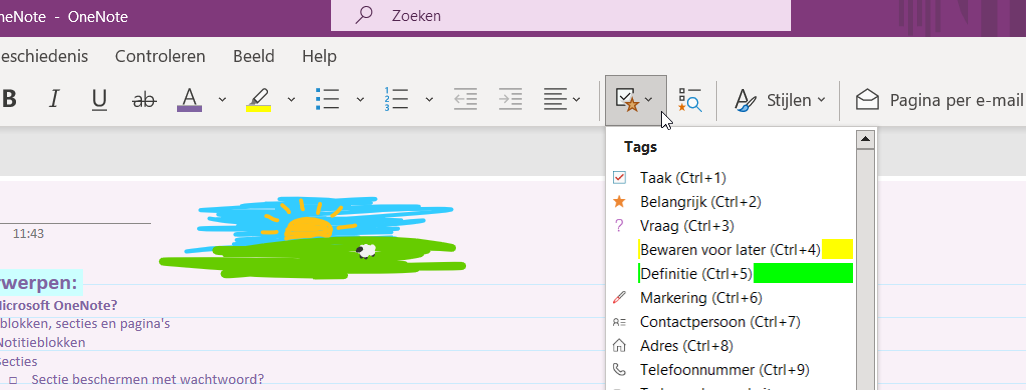
Labels or tags (OneNote for Windows 10 calls them labels, OneNote calls them tags) are icons you can add to your notes to highlight or categorise them. For example, you can use labels to highlight important information, keep track of tasks or mark required actions or outstanding questions. To add a label, select the text or image you want to tag, click on the 'Start' tab and look for the tags/labels icon. There you can choose from a default list or add your own labels. You can also add labels by pressing Ctrl-1 to Ctrl-9.
Edit history
One of the most useful features of Microsoft OneNote is the ability to view editing history. This allows you to see who has worked on a notebook, when and what has changed. This is especially useful if you are collaborating with others on a project or document.
You can access the edit history by clicking on the 'History' tab and then 'Recent changes'. You can then choose to see all changes, changes by author or changes since a certain date. You can also add comments, undo or restore changes or compare versions. So with editing history in Microsoft OneNote, you can always keep control of your notes and collaborate transparently.
Templates
Templates are preset layouts you can use to shape your pages. For example, you can use a template to create an agenda, a to-do list, a report or a note-taking page. To apply a template, click the 'Insert' button in the ribbon, and then choose 'Page templates'.
Wiki links
One of the most advanced features in OneNote is building wiki links. Wiki linking is a convenient way to quickly navigate between different pages in OneNote. Wiki links allow you to hyperlink to another page in the same notebook, or to a page in another notebook. For example, you can create a wiki link to a page with more information on a particular topic, or to a page with a to-do list or a calendar.
Wiki links are easy to create in OneNote. Just put the page name in double square brackets, for example [[Task list]]. If the page already exists, the link is created automatically. If the page does not yet exist, the link is greyed out and you can click on it to create the new page.
You can also create wiki links to sections or notebooks by putting the name of the section or notebook before the page name, separated by a colon, for example [[Projects:Task list]]. Wiki linking is thus a useful tool for organising and connecting your notes in OneNote.

OneNote in Microsoft Teams
Did you know that you can also integrate OneNote into Microsoft Teams? That way, you can easily share and edit your notes with your team members, without leaving Teams.
To integrate OneNote into Teams, you first need to add a tab to a channel or chat. Click the plus sign (+) at the top of the channel or chat and select OneNote from the list of apps. Name the tab and select an existing notepad or create a new one. Click 'Save' to add the tab.
Now you can open the OneNote tab and view and edit your notes. You can also add new sections and pages, insert images, draw with a pen or highlighter and much more. You can also use @mentions to tag someone in your notes. When you do so, that person will get a notification in Teams and can go directly to that note.
OneNote in Teams is a great way to organise, sync and share your notes with your team. Try it out and discover how it can improve your productivity and collaboration.
OneNote on your phone
Want your notebooks always in your pocket and quickly accessible? You can with OneNote's mobile app. The desktop variant of OneNote syncs seamlessly with the mobile app. Download OneNote from the App Store (iOS) or Google Play Store (Android), log in with your Windows account and the OneNote app automatically retrieves all your notebooks from the cloud.
Want to know more or get started in concrete terms?
In this article, we have briefly taken you through how to use OneNote. Did we help you with our tips and advice? Would you like to know more about how OneNote or other Microsoft 365 applications are integrated into our Happy Workplace? Of course we would be happy to help you further. Would you like a no-obligation chat or are you interested in our training courses or adoption approach? Then feel free to contact us at .